Tagging is the quiet step that makes everything else possible. Before ContentApp can match a written idea to the right clip, it needs to know what each file actually shows — so it reads them, one by one, and notes what's in them. Here's exactly what it looks at, and how you stay in control of it.
WHAT IT SEESWhat ContentApp reads in each file
For a photo, ContentApp looks at the picture itself; for a video, it reads a frame from it. For each one it notes the things that help you find it again: the product if it's visible, the person, the area in focus, the setting, the season, the activity, the topic, and how the shot could be used. It also writes a short description in plain words. All of that is saved next to the file — never a copy of the file itself.
YOUR WORDSIt tags in your language, not generic ones
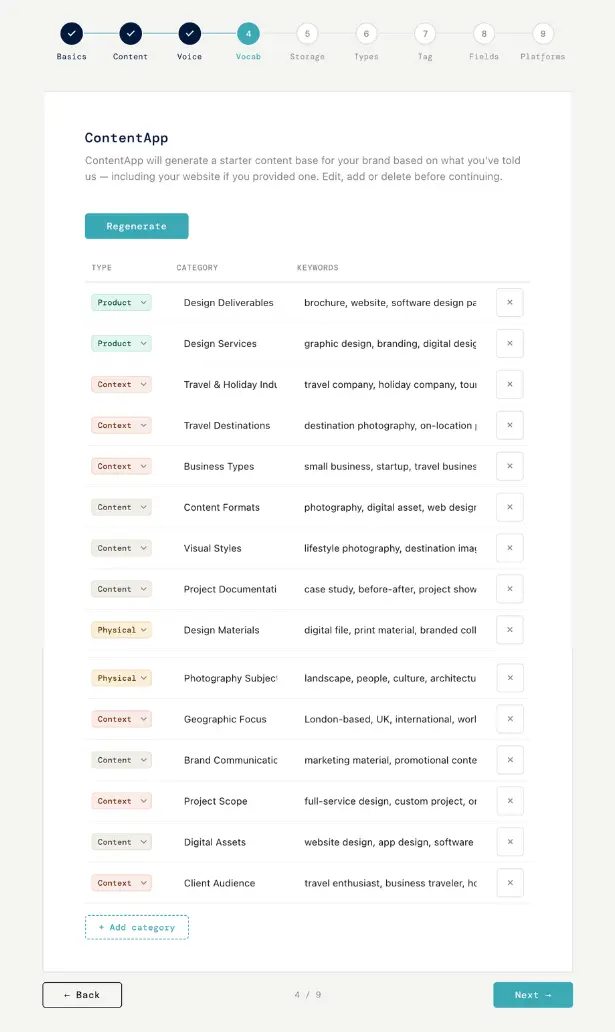
ContentApp doesn't tag in a vacuum. It uses the vocabulary you set up — your settings, your products, the people you named, the areas you care about — so the words on your files are the words you'd use yourself. That makes them easier to search and to match later. You can open your vocabulary any time and add a word, change one, or remove one, and the next tagging run uses the updated list.
CATEGORIESYour folders become content types
The names of your subfolders become your content types — the broad category each file belongs to. You set these once and can adjust them in your settings. They give the matching a strong first filter to start from, before it looks at the finer tags.
WHY IT MATTERSGood tags make everything else easier
Two parts of the app are built directly on these tags. The idea form only offers you filters your tags can answer, so you never reach for a shot you don't have. And when you run an idea, the matching reads the same tags to pick the best video and image. The more cleanly your library is tagged, the sharper both feel — so the few minutes you spend on your vocabulary quietly pay off every time you post.
STAYING CURRENTKeeping your library in step
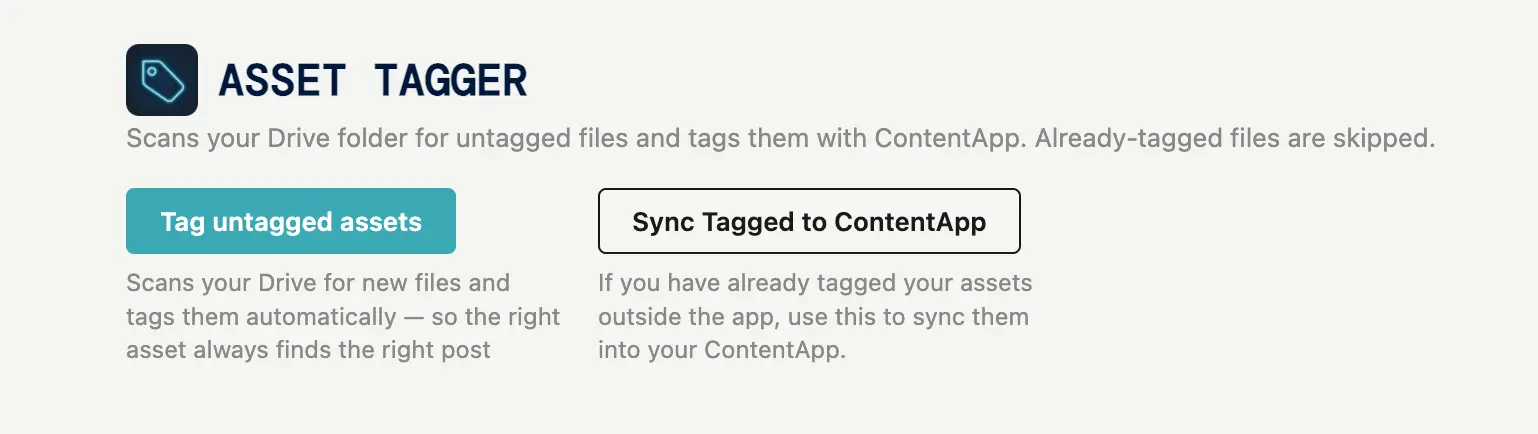
Your library isn't frozen. When you add new files, you run a sync and ContentApp picks up anything new, tags it, and leaves everything it has already done untouched. It never moves, renames or deletes your files — it only reads them. So you can keep shooting and adding, and your library quietly keeps up.
That's tagging from start to finish: it reads your files, in your words, and keeps current as you add more. Everything else in ContentApp leans on this one quiet step — which is why a little care with your vocabulary goes a long way.